The Paste Block button inserts a block that has already been created into the drawing.
Quick Access Panel: 
Ribbon: Editor -> Instruments -> Paste block
Menu: Draw -> Block -> Paste block
A block reference is added to the drawing with the help of the command Paste block. The dialog box Paste block appears. It contains the full list of the block definitions of the current file and allows to paste them. A block reference is added to the current layer. The elements of a block can have properties which do not depend on the block reference.
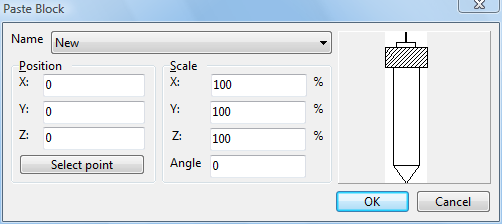
Name - you can select the name of the block from the drop-down menu for subsequent pasting into the drawing. The list contains the names of all the blocks in the current drawing. If the list is blank there are no block definitions in the file.
Position - use this area to select the coordinates for the insertion of the block. The data can be input both from the keyboard and by mouse-clicking on the necessary point in the drawing itself. In order to select the necessary point right in the drawing please press  after which you'll be able to show the necessary placement. The default setting for the point of insertion is the zero point.
Scale - shows the scale along the X, Y and Z axes and the angle of the block for its insertion. By default the scale is "100%" in all the axes and the angle is "0". That is by default the block is inserted into the drawing without changes - with the same scale and angle as it was created.
The navigator area in the right part allows previewing the block. Left-click on the navigator field to drag the preview picture. Use the mouse wheel to scale it.
Go to ABViewer